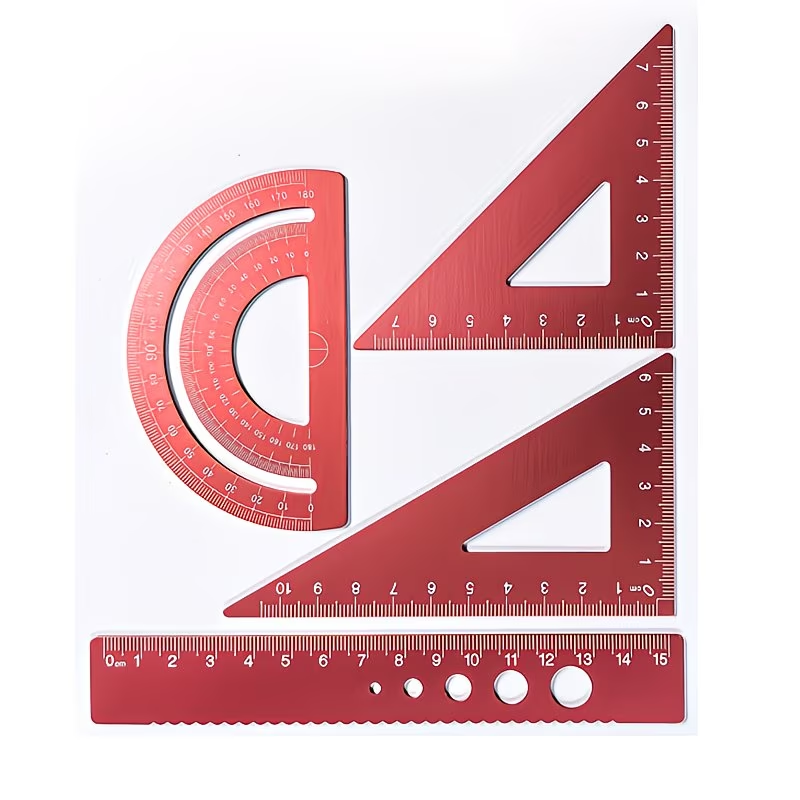
Why Print Scale Matters
Jewelry templates must be printed at the correct scale to be useful at the bench. Even a small printer scaling error can change ring blank length, bezel layout, pendant shape or stone placement.
For accurate jewelry making, templates should normally be printed at actual size, also called 100% scale or 1:1 scale.
The Correct Print Setting
Most printing problems happen because the printer software tries to resize the document automatically.
Avoid settings such as “fit to page”, “shrink to printable area”, “scale to fit” or automatic resizing. These options can change the template size.
Recommended Printer Settings
| Setting | Use This | Avoid This |
|---|---|---|
| Scale | 100% / Actual Size | Fit To Page |
| Page Size | Correct paper size | Auto-resize paper |
| Orientation | As designed | Automatic rotation if it crops scale marks |
| Margins | Default or minimal | Scaling to printable area |
| Verification | Measure scale mark after printing | Trusting screen preview only |
Check The Scale After Printing
A good template should include a printed scale reference, such as a 10 mm, 20 mm or 1 inch test line.
After printing, measure that reference line with calipers or a ruler. If the printed scale mark is wrong, the entire template is wrong.
- print the template at 100%
- measure the printed scale mark
- confirm the mark matches the expected size
- reprint if the scale is incorrect
- only cut metal after verifying scale
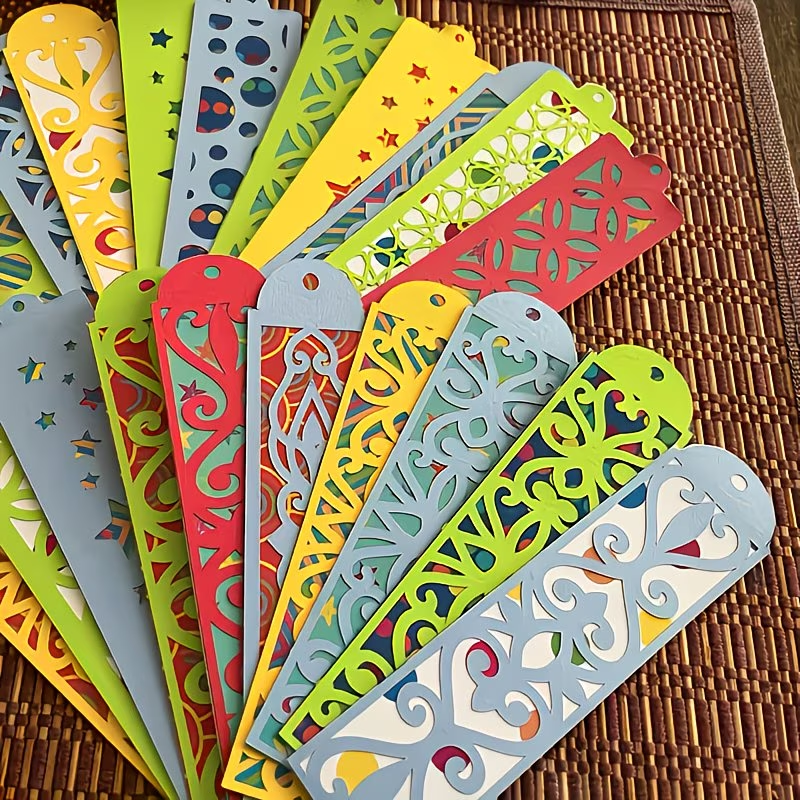
Common Printing Mistakes
- printing with “fit to page” enabled
- using the wrong paper size
- not checking the printed scale mark
- measuring from the screen instead of the printed page
- using low-resolution screenshots instead of printable files
- cutting metal before confirming the template size
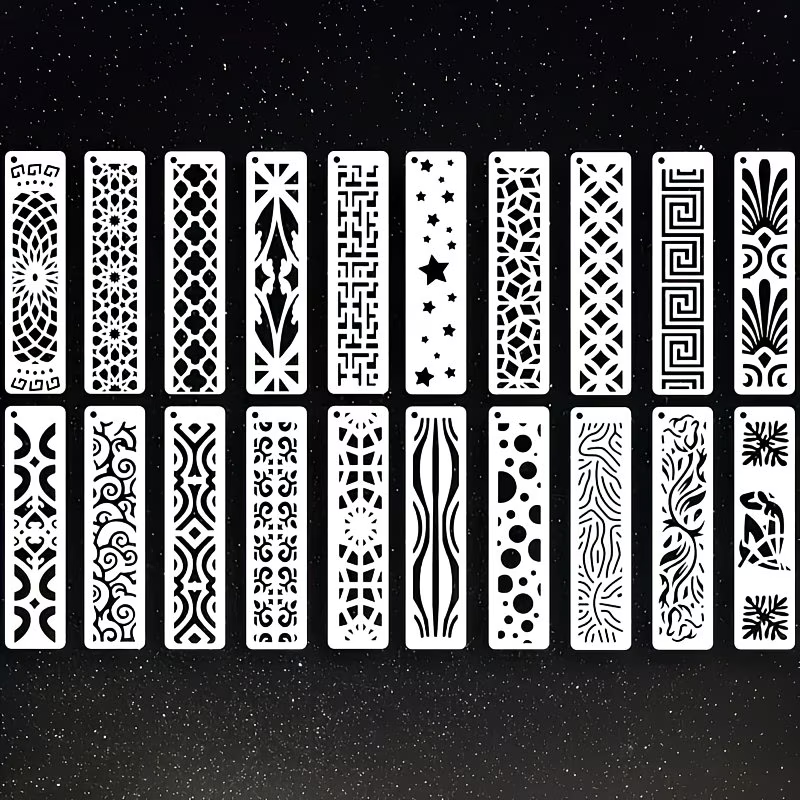
Using Templates For Jewelry Layout
Printed jewelry templates are useful for planning rings, bezels, pendants, stone spacing and decorative layouts.
Templates are especially helpful when testing proportions before cutting sheet metal or wire.
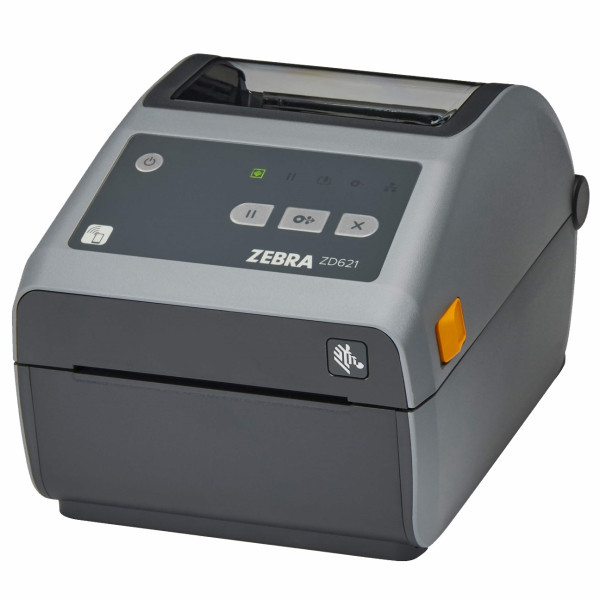
Printing On Labels Or Thermal Printers
Some makers use label printers or compact thermal printers for workshop labels, templates or quick layout references.
These printers can be useful, but the same rule applies: always verify the printed scale before using the output as a cutting or layout guide.
Best Practices For Printable Jewelry Templates
- use PDF or high-resolution printable files when possible
- print at actual size or 100%
- avoid browser scaling when precision matters
- measure the printed scale mark before use
- store verified templates flat or in a workshop folder
- write notes on templates after testing them at the bench
Related Jewelry Guides
Use The Jewelry Calculator
Generate printable jewelry templates, ring layouts, stone references and workshop patterns directly in your browser.